Introduction
Sending emails is a common part of our daily work, but sometimes mistakes happen. You might send an email to the wrong person, forget an attachment, or notice an error after hitting “Send.” Luckily, Outlook offers a feature that allows you to recall an email under certain conditions.
In this guide, we will explore how to recall an email in Outlook, the requirements for recalling, and tips to ensure successful email recall.
What Does It Mean to Recall an Email in Outlook?
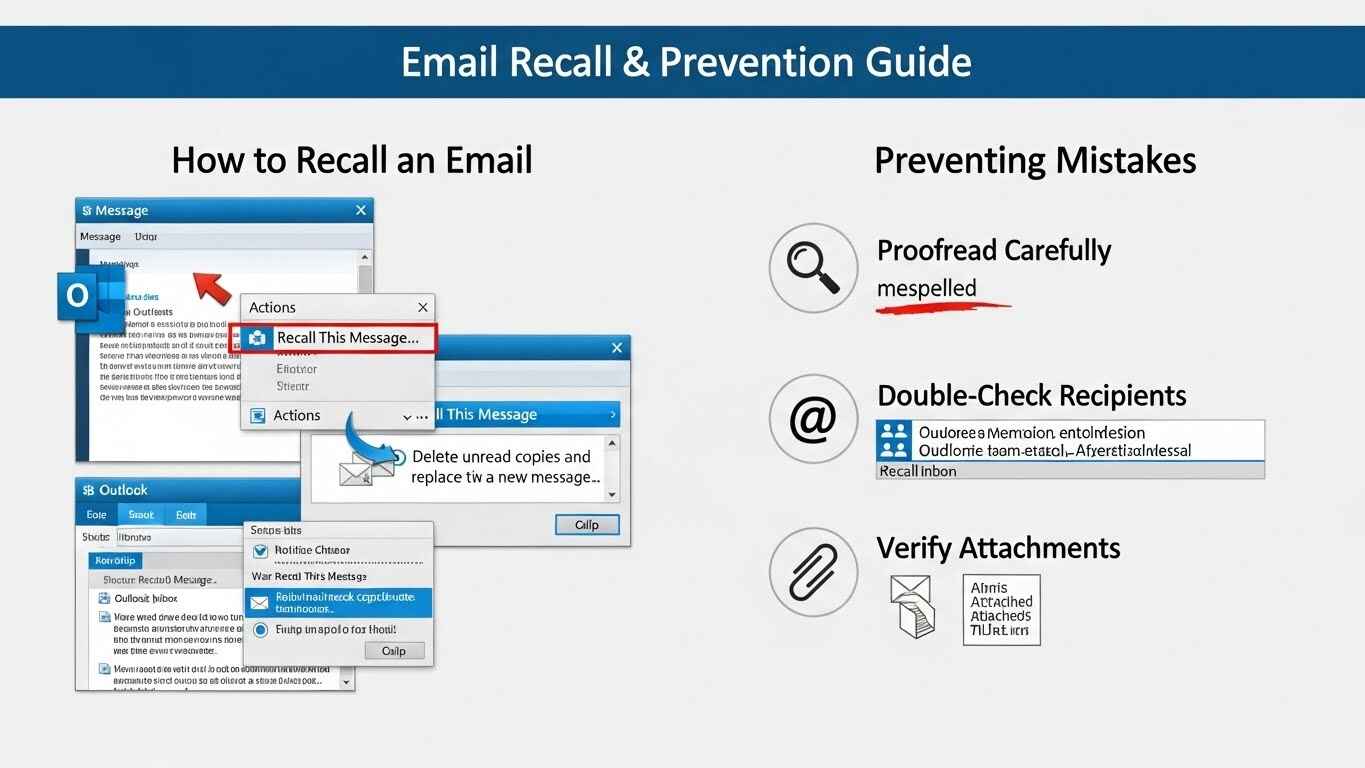
Recalling an email in Outlook means attempting to retrieve an email you have already sent, so the recipient does not see it. This feature is useful for correcting mistakes, removing incorrect information, or resending an email with updates.
However, it is important to know that recalling an email is not always guaranteed.
Its success depends on factors such as the recipient’s email settings, whether they have already read the email, and if both sender and receiver use Outlook within the same organization.
When Can You Recall an Email in Outlook?
The email recall feature in Outlook works best under certain conditions:
- Both sender and recipient use Microsoft Outlook.
- The recipient is in the same organization or email server.
- The recipient has not read the email yet.
- The email has not been moved from the inbox.
If these conditions are not met, the recall attempt may fail. In such cases, the best option is to send a follow-up email to clarify any mistakes.
Step-by-Step Guide on How to Recall an Email in Outlook
Here’s a simple process to recall an email in Outlook:
Step 1: Open Outlook and Go to Sent Items
Open your Outlook application and navigate to the Sent Items folder. This folder contains all emails you have sent.
Step 2: Select the Email You Want to Recall
Find and open the email you want to recall. Double-click to open it in a new window.
Step 3: Click on the “Actions” Menu
In the email window, go to the Message tab. Look for the Actions option in the toolbar. Click on it to see the dropdown menu.
Step 4: Select “Recall This Message”
From the dropdown menu, select Recall This Message. A new dialog box will appear with recall options.
Step 5: Choose Your Recall Option
You will see two options:
- Delete unread copies of this message – This option attempts to remove the email from the recipient’s inbox.
- Delete unread copies and replace with a new message – This option allows you to replace the original email with a corrected version.
Choose the option that suits your needs and click OK.
Step 6: Confirm the Recall
Outlook will notify you if the recall is successful or if it fails. You can also request a notification for each recipient.
Tips for Successful Email Recall in Outlook
Recalling an email can be tricky, but following these tips improves your chances of success:
- Act quickly: The sooner you recall, the higher the chance the email has not been read.
- Use the same email server: Recall works best within the same organization.
- Check recipient status: If the recipient has rules that move emails automatically, recall may fail.
- Send a corrected email: If recall fails, immediately send a corrected version to minimize confusion.
How to Recall an Email in Outlook on Web
For Outlook Web users, the email recall feature is slightly different. While the classic recall feature is not available, you can use “Undo Send”:
- Open Outlook Web in your browser.
- Go to Settings > View All Outlook Settings.
- Click Mail > Compose and Reply.
- Enable Undo Send and choose a delay period (5 to 10 seconds).
This feature gives you a short window to retract an email immediately after sending.
Common Reasons Why Email Recall Fails
Even when following the correct steps, recalling an email in Outlook may fail due to:
- The recipient already opened the email.
- The recipient uses a different email client, such as Gmail or Yahoo.
- The email was sent to an external address outside your organization.
- Email rules moved the message from the inbox.
Understanding these limitations helps manage expectations and plan alternative solutions.
How to Check if Your Email Recall Was Successful
After attempting to recall an email in Outlook, you can check the result:
- Outlook sends a recall success or failure notification to your inbox.
- You can review the Message Recall Report under the original email in Sent Items.
- If multiple recipients are involved, Outlook may notify you individually for each recipient.
Conclusion:
Knowing how to recall an email in Outlook is an essential skill for professionals who send emails regularly. While the feature is not foolproof, it provides an opportunity to correct mistakes quickly.
By acting fast, understanding the requirements, and following best practices, you can improve the success of email recalls and maintain professional communication.
Additionally, adopting habits like double-checking emails and using Undo Send or Delay Delivery in Outlook Web ensures fewer errors and a smoother email experience.
Mastering email recall in Outlook not only saves time but also enhances productivity and professional credibility.





Leave a Reply